

Backtest Your EA in MetaTrader 5 — Strategy Tester Guide
Before risking real money, you must backtest your Expert Advisor on historical data. The MetaTrader 5 Strategy Tester [1] lets you run your EA through years of price history in minutes — evaluating profit, drawdown, and trade count before going live. According to the official MT5 documentation [2], the tester uses accumulated quotes and performs virtual transactions according to your algorithm. This guide walks you through opening the tester, configuring settings, running a backtest, and reading results — step by step.
Why Backtest First
- Find bugs — Logic errors, invalid stops, or margin issues surface in the tester before they cost real money.
- Evaluate performance — Profit factor, drawdown, and trade count tell you if the strategy is worth deploying.
- Avoid overfitting — Use forward testing to validate that parameters work on unseen data, not just the optimization period.
The Strategy Tester is multi-threaded and can use MQL5 Cloud Network [1] for faster optimization. Per MetaTrader 5 Help [2]: "The entire operation of the Strategy Tester is based on historical quotes. During testing, the Expert Advisor goes through the accumulated quotes and performs virtual transactions according to its algorithm."
Step 1: Open Strategy Tester
- In MetaTrader 5, go to View → Strategy Tester (or press Ctrl+R).
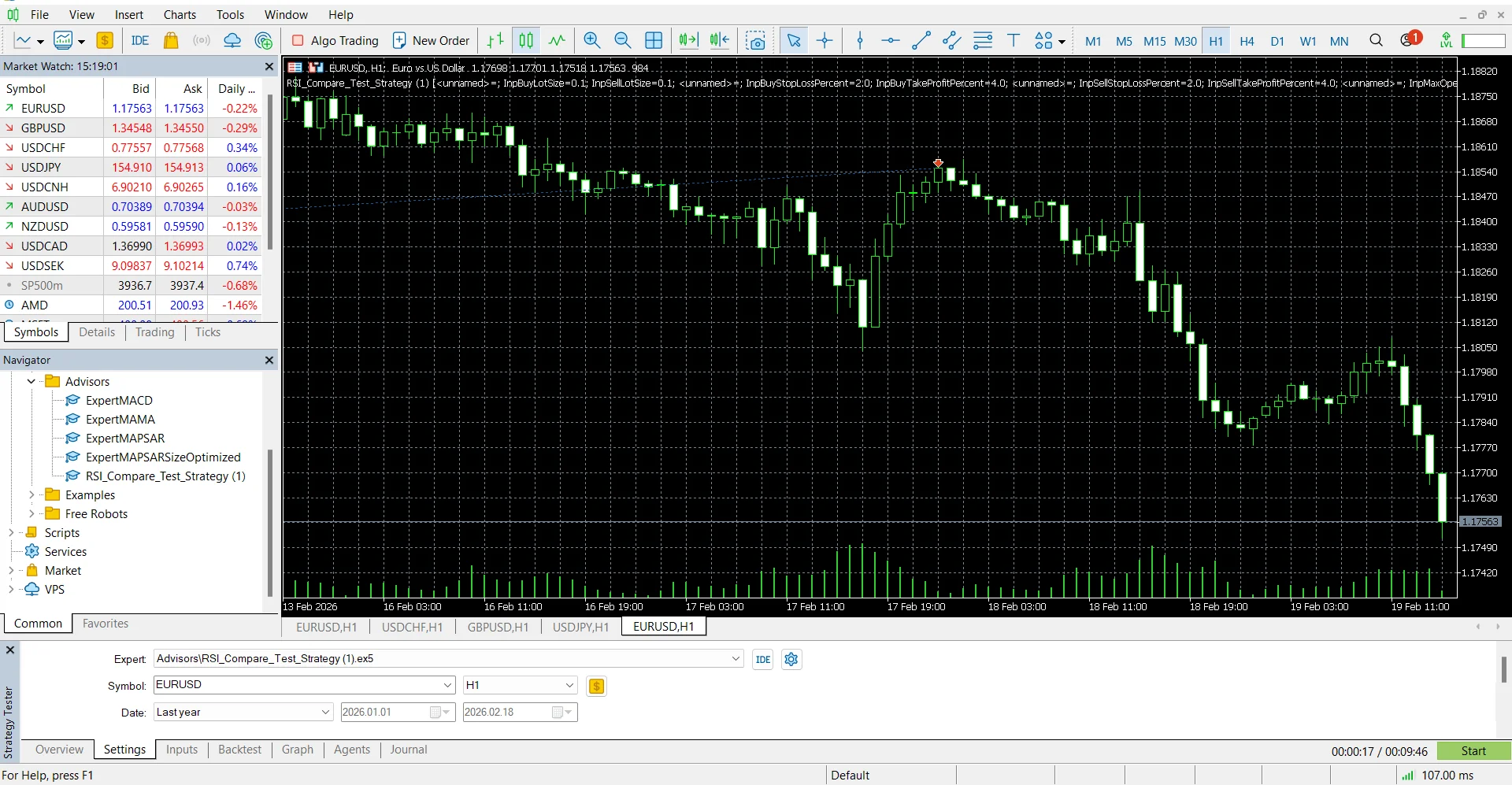
- The Strategy Tester panel opens at the bottom of the screen.
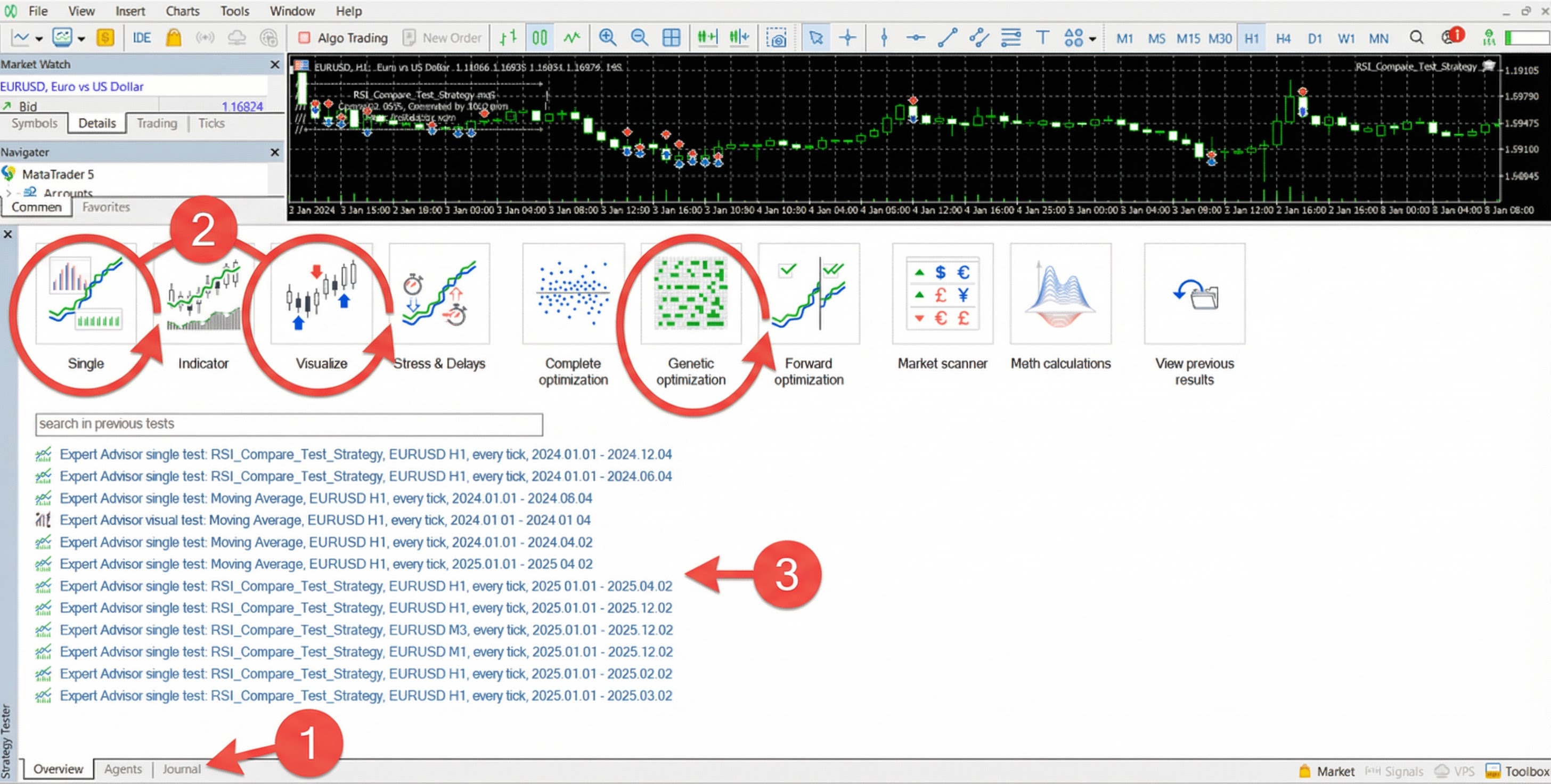
Source: MetaTrader 5 Strategy Tester [1] — official documentation.
Step 2: Select EA and Symbol
Select Expert Advisor:
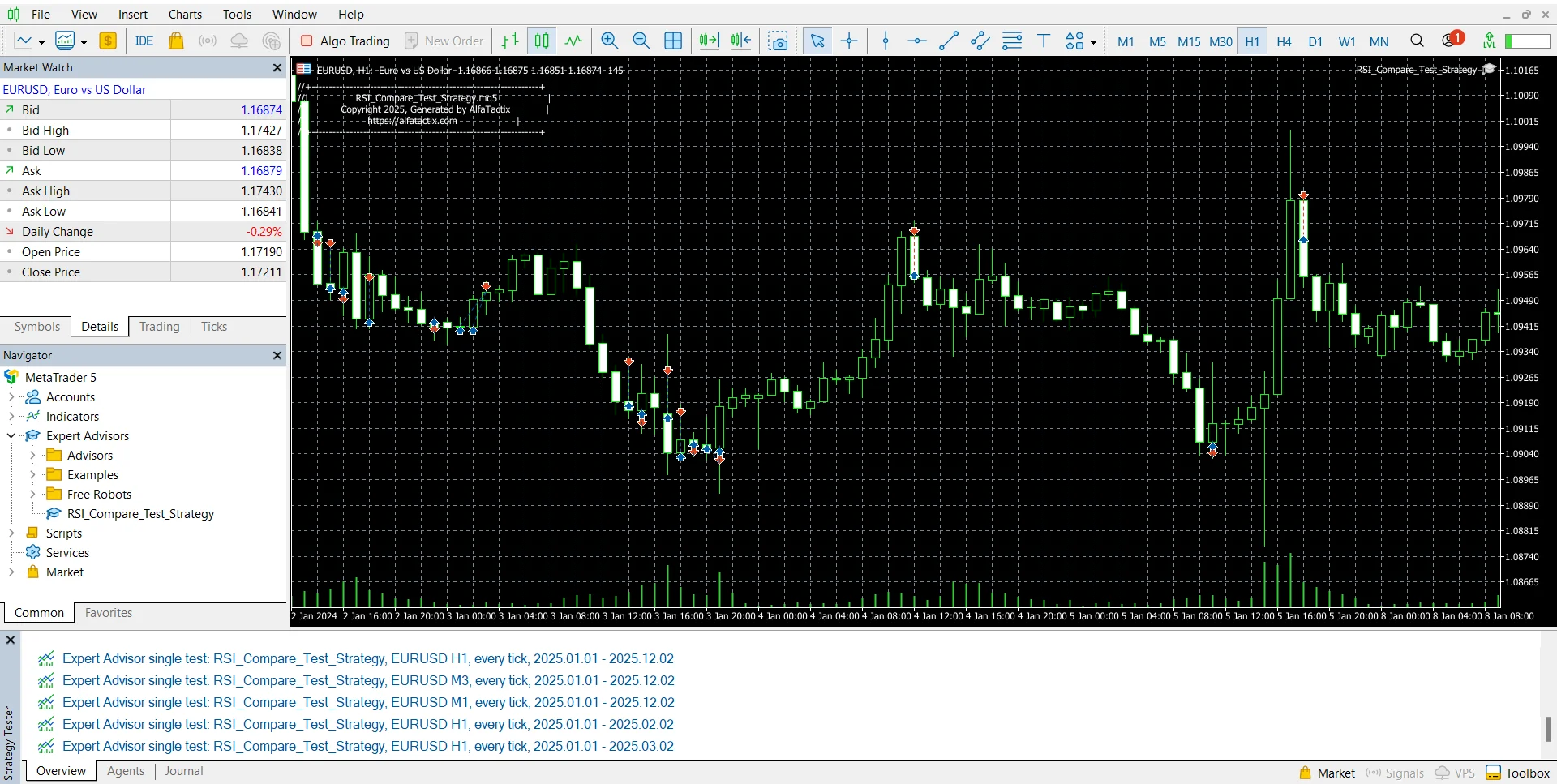
- In the Navigator (Ctrl+N), expand Expert Advisors.
- Right-click your EA → Test — it will be selected in the Strategy Tester.
- Or choose it from the Expert Advisor dropdown in the tester.
Select Symbol:
- Choose the symbol (e.g. EURUSD, XAUUSD) from the Symbol dropdown.
- The symbol must be in Market Watch — add it via View → Symbols (Ctrl+U) if needed.
Select Timeframe:
- Choose the chart period (M15, H1, H4, etc.). This affects
Symbol()andPeriod()in your EA.
Step 3: Date and Forward
Date:
- Set the start and end dates for testing. Use at least 12 months for meaningful results.
- The tester automatically downloads additional data before the start (to form at least 100 bars) — per MT5 Help [2].
Forward:
-
The Forward option splits the period to avoid overfitting:
- 1/2 — First half for backtest, second half for forward validation.
- 1/3 — One third for forward.
- 1/4 — One quarter for forward.
- No — No forward testing; use full period for backtest.
-
The first part is used for optimization/backtest; the second part validates the results. If the EA performs well on both, parameters are less likely to be overfitted.
Step 4: Tick Generation Mode
Choose how the tester simulates price movement:
| Mode | Accuracy | Speed | Use |
|---|---|---|---|
| Every tick based on real ticks | Highest | Slow | Most realistic; uses real ticks from broker |
| Every tick | High | Slowest | Simulated ticks; best when real ticks unavailable |
| 1 minute OHLC | Good | Medium | 4 prices per minute bar; good balance |
| Open prices only | Low | Fastest | Only bar open; quick rough check |
| Math calculations | N/A | Fast | No market data; only OnInit, OnTester, OnDeinit |
Per MetaTrader 5 [1]: "Every tick" is used to ensure the best testing accuracy. "1 minute OHLC" is introduced for traders who want to test quickly but accurately. "Open prices only" is for very quick and rough estimation.
Step 5: Deposit and Leverage
- Deposit: Set the initial deposit (e.g. 10000). Default currency is the account deposit currency.
- Leverage: Select leverage (e.g. 1:100). This affects margin and position sizing.
Step 6: Run and Read Results
- Click Start on the Settings tab.
- Progress is shown in the left panel.
- When finished, check the Result and Graph tabs.
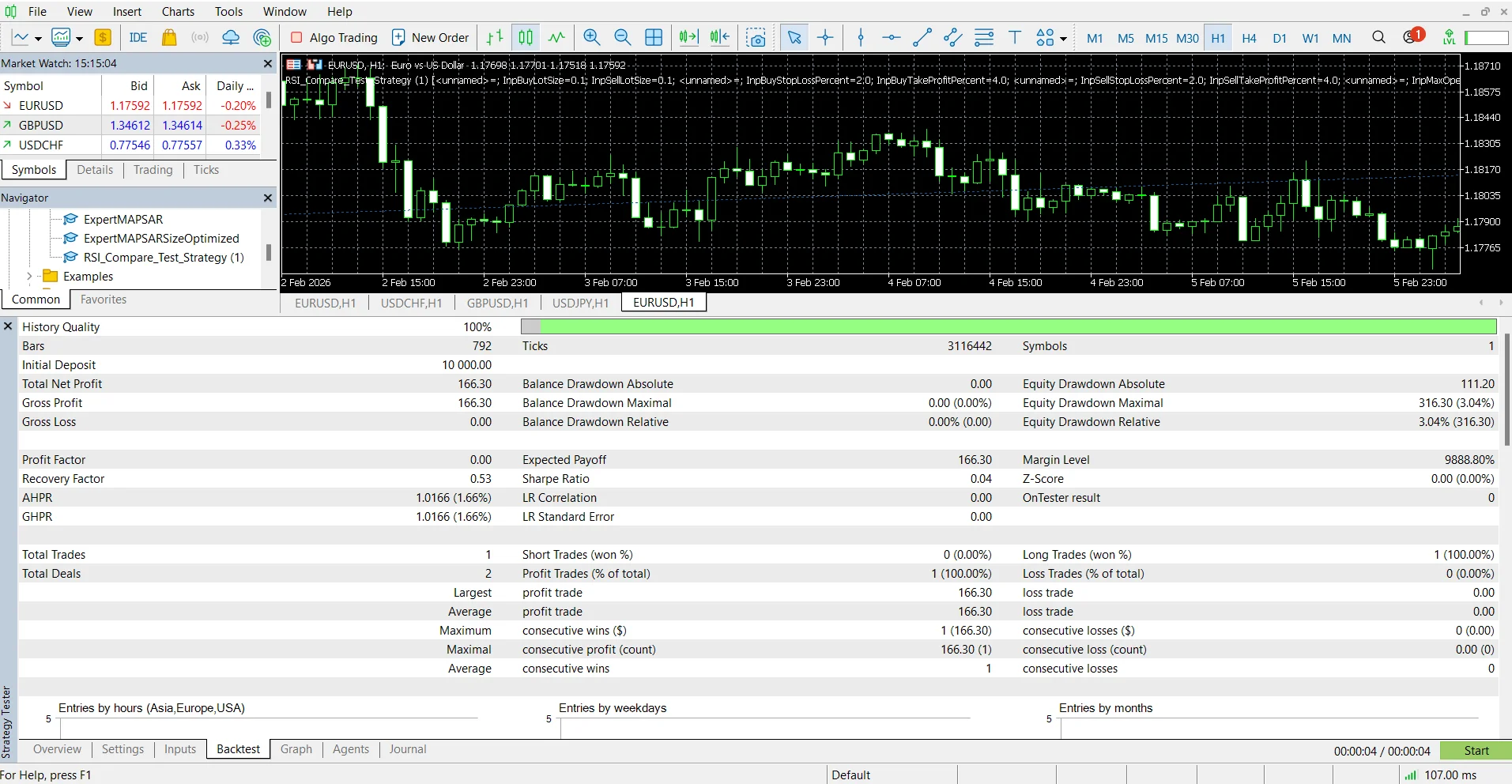
Result tab:
- Profit — Total profit/loss.
- Total trades — Number of closed positions.
- Profit factor — Gross profit / Gross loss.
- Expected payoff — Average profit per trade.
- Drawdown — Maximum equity decline.
- Risk factor — Risk metric.
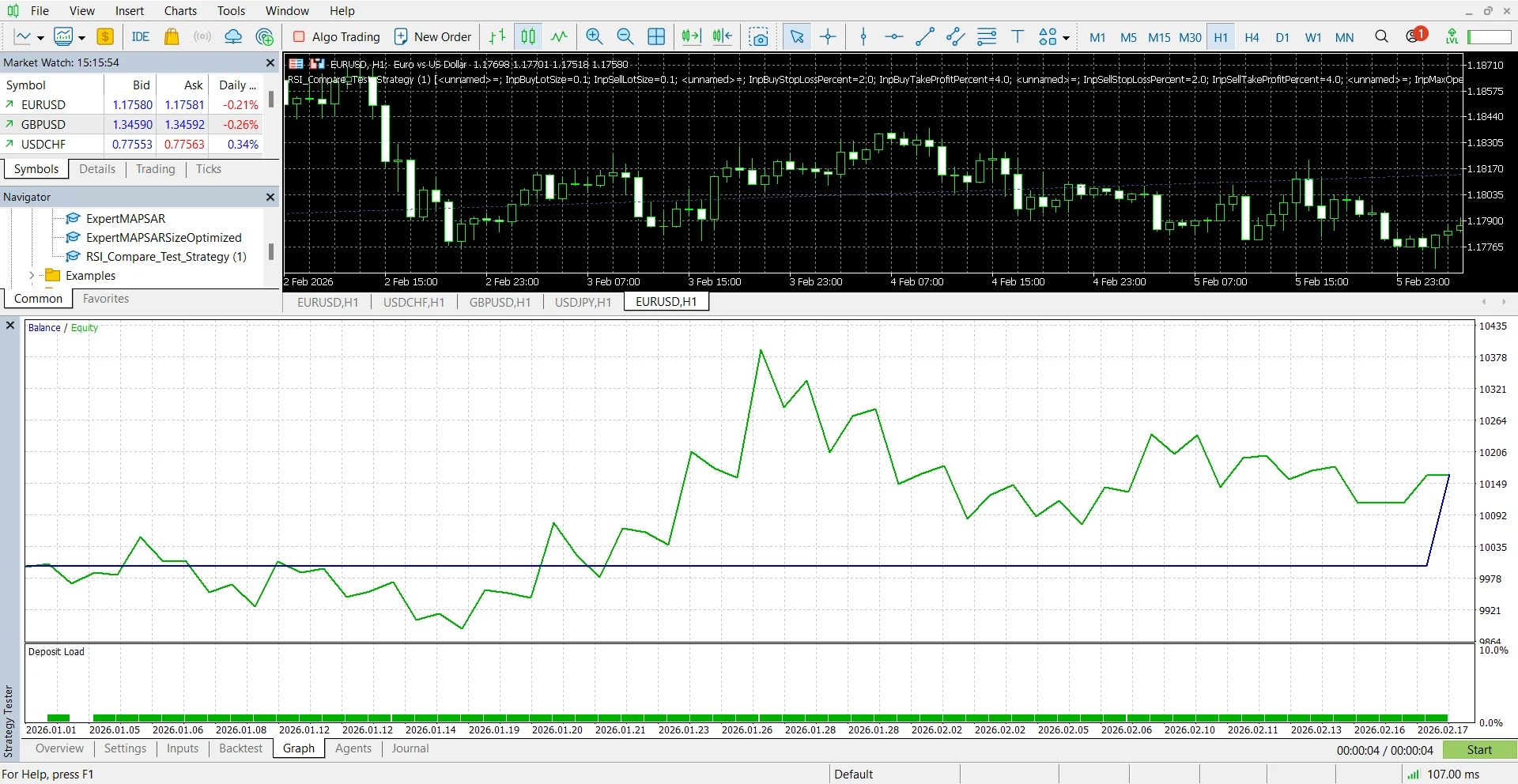
Graph tab:
- Balance curve (blue) — Account balance over time.
- Equity curve (green) — Balance + floating P/L.
- Deposit load — Margin/equity.
Optimization
To find the best input parameters:
- Click the Optimization checkbox (or select Optimization mode).
- For each input you want to optimize, set Start, Step, and Stop.
- Choose Optimization criterion (e.g. Balance max, Profit factor max).
- Click Start — the tester runs multiple passes with different parameter combinations.
- Use Genetic algorithm to speed up optimization — it skips many combinations.
Results are shown in the Optimization tab. You can sort by criterion and apply the best set to your EA.
Visual Testing
To watch your EA trade bar-by-bar:
- Enable Visualization in the tester settings.
- Click Start — a new window opens with a chart.
- Use the toolbar to pause, speed up, or slow down.
- Trades appear as icons on the chart; the Journal shows EA messages.
Note: Visual mode works only with local agents. Optimization must be disabled.
Troubleshooting
| Symptom | Cause | Fix |
|---|---|---|
| EA not in dropdown | Not compiled or not in MQL5/Experts | Compile in MetaEditor (F7); save to Experts folder |
| No trades in backtest | Symbol not in Market Watch, wrong logic | Add symbol; check Journal for errors |
| "Not enough money" | Lot too large for deposit | Reduce lot size or increase deposit |
| Slow backtest | Every tick mode, long period | Use 1 minute OHLC for faster testing |
| Optimization very slow | Many parameter combinations | Use genetic algorithm; reduce step range |
Tactix AI on this workflow
AlfaTactix includes Tactix AI: use Tactix Studio to describe your idea in plain language and draft timeframes, signals, filters, and risk into the same six-step Strategy Builder form — or open Tactix Guide on any step when you only need a field explained. Review every value, then export MQL5 or Pine Script from Code Generator (form-first — not untested prompt-to-code).
Next Steps
After a successful backtest, read Strategy Tester vs Live — then deploy to Demo first before going live. See Build Your First EA and EA Risk Management.
Practical loop: Model the same dates in Strategy Tester, then rebuild one entry rule in the live demo if you cannot explain every trade the downloaded EA took — matching tester output to a tree you own beats another blind attach.